
How do you audit Microsoft 365 admin roles before a compliance review?
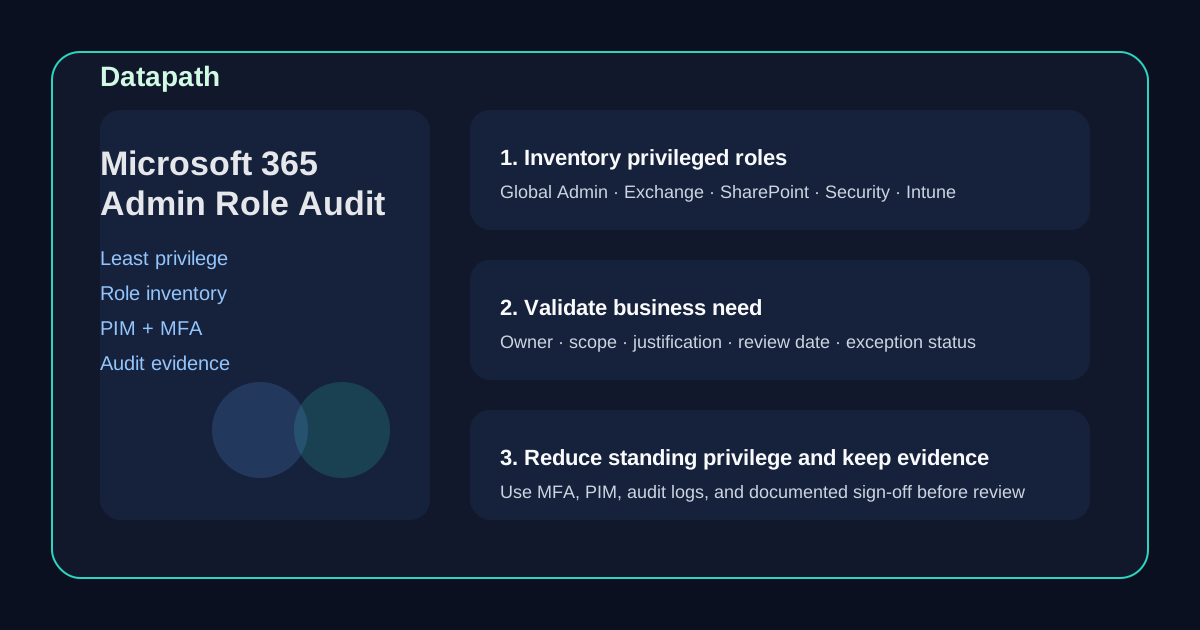
To audit Microsoft 365 admin roles before a compliance review, inventory every privileged role assignment, compare each assignment against real job responsibilities, remove unnecessary elevation, validate MFA and Privileged Identity Management controls, and preserve evidence showing who has access, why they have it, and how that access is reviewed.123
That answer sounds simple, but the work usually gets messy fast. Microsoft 365 environments accumulate privileges over time: temporary escalation becomes permanent, legacy admins stay in place after team changes, and broad roles get assigned because they are convenient in the moment. When a compliance review shows up, teams suddenly need to explain why a user has Global Administrator, Exchange Administrator, SharePoint Administrator, or Security Administrator rights and whether those rights are still justified.
In our experience, the best role audits do two things at once. They reduce security risk immediately, and they produce cleaner evidence for HIPAA, SOC 2, GLBA, CJIS, and other control frameworks that care about least privilege, access review, and accountability.
Why does Microsoft 365 admin role auditing matter so much?
Privileged accounts create asymmetric risk. A normal user account can cause trouble. A badly governed admin account can change tenant-wide settings, weaken email protection, alter retention, expose data, or interfere with your audit trail. Microsoft explicitly recommends using roles with the fewest permissions possible and limiting the number of highly privileged admins.12
That matters for three reasons:
- Security risk: overprivileged accounts expand the blast radius of phishing, credential theft, and insider mistakes.
- Audit friction: compliance reviewers will want to see how admin rights are approved, reviewed, and revoked.
- Operational clarity: when role ownership is vague, nobody can confidently explain who should approve changes or investigate suspicious activity.
A role audit is really a governance check. It tells you whether your tenant is being administered intentionally or just inherited one shortcut at a time.
What should be in scope for a Microsoft 365 admin role audit?
A lot of teams make the mistake of checking only the Microsoft 365 admin center and calling it done. That is not enough. Microsoft notes that the Microsoft 365 admin center covers only a subset of the roles available through Microsoft Entra and related admin portals.1
Review the full privilege surface
We recommend including at least:
- Global Administrator assignments
- Microsoft Entra privileged roles
- Exchange admin roles
- SharePoint and OneDrive admin roles
- Teams admin roles
- Security and Compliance roles
- Intune roles if device management is in scope
- Break-glass or emergency access accounts
- Guest or partner accounts with elevated access
- Service accounts and automation identities where applicable
Capture the fields you will need during the review
For each assignment, document:
| Field | Why it matters |
|---|---|
| User or account name | Identifies who actually holds the privilege |
| Role assigned | Shows the exact level of access |
| Scope | Clarifies whether access is tenant-wide or limited |
| Business owner | Establishes who approves the access |
| Justification | Explains why the role exists |
| MFA status | Shows whether strong authentication protects the account |
| PIM / JIT status | Proves elevation is controlled where possible |
| Last review date | Demonstrates ongoing governance |
| Planned action | Keep, reduce, remove, or redesign |
If your team cannot fill in those columns, the audit is not ready yet.
How should you actually run the audit?
We recommend a four-part workflow: inventory, validate, remediate, and evidence.
1. Inventory every privileged assignment first
Start by exporting current role assignments from the Microsoft 365 admin center and Microsoft Entra admin center. Microsoft documents role assignment management in the admin center and provides detailed guidance for Microsoft Entra role governance and least privilege.13
The point of this first pass is not to argue about every account yet. It is to build a complete list so nobody can hide behind partial visibility later.
2. Validate each assignment against the user’s real job
Once you have the list, ask a simple question for each role: Does this person still need this exact level of access to do their job today?
That review should catch common problems such as:
- former administrators who changed roles but kept elevation
- help desk staff holding broader access than needed
- project-based admin rights that were never removed
- executives or vendors with convenience-based admin access
- shared admin accounts with weak ownership
- multiple Global Administrators where lower roles would work
Microsoft Entra guidance is clear here: apply least privilege, minimize standing access, and use role assignment intentionally.3
3. Reduce and redesign access where possible
A useful audit does not stop at identifying risk. It changes the tenant.
We usually recommend these priorities:
- reduce the number of Global Administrators
- replace broad roles with narrower role assignments
- move standing privilege to just-in-time elevation through Privileged Identity Management where licensing and architecture support it3
- validate MFA on every privileged account3
- separate emergency access accounts from daily admin identities
- review guest and vendor access for unnecessary elevation
This is also the point where your team should decide what to do with exceptions. Some broad rights may still be justified. If so, document the business reason, the owner, the compensating controls, and the next review date.
4. Preserve evidence the auditor can follow
Do not rely on memory. Save exports, screenshots, decision logs, and approval notes. Microsoft Purview audit logs can help show role changes and related admin activity, including role membership events.4
The evidence pack should usually include:
- exported role assignment list
- notes on removed or reduced privileges
- exception register for any retained elevated access
- MFA and PIM confirmation for privileged accounts
- audit log screenshots or reports showing role-governance activity
- review sign-off from the responsible owner
What do auditors usually want to see?
Most reviewers are looking for consistency, not perfection. They want to know whether your team has a credible process for governing admin access.
Show that access is intentional
A good evidence set makes these points easy to follow:
- privileged roles are limited to defined owners
- each assignment has a business justification
- stronger controls protect higher-risk accounts
- stale or excessive access gets removed
- changes are logged and reviewable
- the review repeats on a defined cadence
That is the difference between “we think our roles are okay” and “here is the documented control.”
Connect the role audit to broader Microsoft 365 governance
Role governance should not sit alone. It should connect to related controls such as Microsoft 365 security best practices for mid-market businesses, HIPAA audit log requirements in Microsoft 365, your broader managed IT services overview, and the resources and guides hub.
That broader context matters because privileged access affects incident response, ePHI exposure, vendor governance, retention controls, and cyber-insurance posture at the same time.
What mistakes cause Microsoft 365 role audits to fail?
We see the same failure patterns over and over.
Teams audit only one admin portal
A partial export creates false confidence. If you only review the Microsoft 365 admin center, you can miss relevant Entra, Purview, Intune, or security-role assignments.1
Teams review people but not accounts
Human users are only part of the picture. Emergency accounts, guest identities, automation accounts, and old service principals can create just as much audit pain if they hold excessive rights.
Teams remove access but keep no evidence
Fixing the problem is good. Being unable to prove what changed is not. Export before-and-after data and keep a review record.
Teams treat the exercise as a one-time cleanup
A single cleanup helps, but privilege sprawl comes back unless the business ties role review to onboarding, offboarding, project closeout, and quarterly governance.
Why Datapath for Microsoft 365 role-governance work?
We think Microsoft 365 admin role audits should do more than make an auditor happy. They should leave your environment easier to govern, easier to explain, and harder to abuse.
At Datapath, we help teams connect role governance to the rest of the operating model: security controls, ownership, incident readiness, vendor access, and compliance evidence. If your team is unsure whether your current Microsoft 365 admin model would hold up during a real review, start with the Datapath homepage, review our healthcare IT and financial services IT solution pages if you operate in a regulated environment, or talk with our team about where privilege sprawl is creating unnecessary risk.
FAQ: Microsoft 365 admin role audit
How many Global Administrators should a Microsoft 365 tenant have?
Microsoft recommends limiting highly privileged roles and using the fewest permissions necessary.12 The right number depends on your operating model, but most organizations should keep Global Administrator assignments tightly restricted and justified.
Should guest users or vendors be included in an admin role audit?
Yes. Any guest, partner, contractor, or vendor identity with elevated Microsoft 365 or Entra permissions belongs in scope because those assignments affect risk and auditability.
Is MFA enough to secure privileged Microsoft 365 accounts?
No. MFA is important, but it should be paired with least privilege, review cadence, audit logging, and just-in-time elevation where practical.34
How often should Microsoft 365 admin roles be reviewed?
Quarterly is a practical baseline for many mid-market teams, with additional reviews after staffing changes, incidents, major projects, or compliance preparation windows.
What is the fastest win in a Microsoft 365 role audit?
For many organizations, the fastest win is reducing unnecessary Global Administrator assignments and replacing standing broad access with narrower roles or just-in-time elevation.
Sources
- Microsoft Learn: About administrator roles in the Microsoft 365 admin center
- Microsoft Learn: Audit log activities
- Microsoft Learn: Best practices for Microsoft Entra roles
- Datapath: Microsoft 365 Security Best Practices for Mid-Market Businesses