
How should Microsoft 365 administrators run a SharePoint permissions audit checklist?
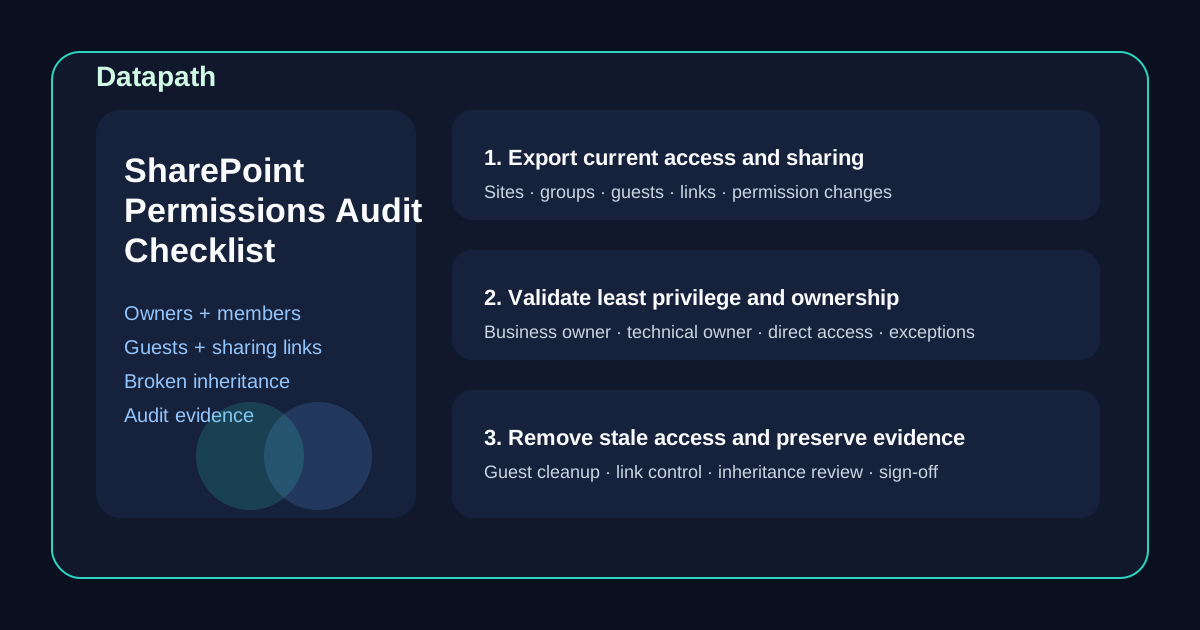
To run a SharePoint permissions audit checklist, Microsoft 365 administrators should define which sites and workspaces are in scope, export current access, review owners and members, identify stale guest access and risky sharing links, check where inheritance is broken, validate permissions against real business need, remediate overexposure, and preserve evidence of the review.123
That sounds straightforward until you try to do it in a live tenant. SharePoint permissions are rarely messy in just one way. The real problem is usually a mix of inherited access, ad hoc sharing, old project sites, guest users who never got removed, and direct permissions that nobody remembers granting.
In our experience, the best audits do more than satisfy a security checklist. They help the business answer a harder question: who can reach sensitive content right now, and is that access still justified? That matters for day-to-day governance, Copilot readiness, incident response, and compliance reviews at the same time.
Why does SharePoint permissions auditing matter so much?
SharePoint often becomes the storage layer behind collaboration, departmental workflows, regulated records, and executive documents. When permissions drift over time, sensitive content can end up more exposed than leadership realizes.
Microsoft’s own guidance makes the bigger point: auditing and permission review are not optional administrative chores. They are part of proving accountability, tracing activity, and supporting records, security, and compliance expectations.13
A solid permissions audit usually improves four things at once:
- Security: fewer unnecessary users, guests, and links with access to sensitive content
- Compliance evidence: a clearer record of how access is reviewed and governed
- Operational clarity: easier escalation when site ownership and access decisions are documented
- Change control: better visibility into where permissions are being altered outside normal process
That is also why we often connect SharePoint review to broader governance topics like auditing Microsoft 365 admin roles before a compliance review, Entra ID hardening, the Datapath homepage, our managed IT services, and our resources and guides hub.
What should be included in a SharePoint permissions audit checklist?
A useful checklist should focus on how access is really granted in production, not just on what looks tidy in a single portal screenshot.
Review these areas first
At minimum, include:
- active SharePoint sites and high-risk site collections
- Microsoft Teams-connected sites
- private and shared channel sites where applicable
- OneDrive or document libraries tied to sensitive workflows if they are part of the review scope
- site owners, members, and visitors
- Microsoft 365 groups and security groups tied to site access
- guest users and external sharing links
- direct permissions granted outside normal group structure
- document libraries, folders, or items with broken inheritance
- highly sensitive sites used for HR, finance, legal, clinical, or executive work
A lot of audits fail because they review only site-level membership and never inspect unique permissions, external links, or exceptions buried at the library and folder level.24
How do you actually run the checklist?
We recommend a six-step workflow: scope, inventory, analyze, remediate, evidence, and repeat.
1. Define scope and ownership before you export anything
Start by deciding which sites matter most for this cycle. For many teams, that means prioritizing regulated content, executive workspaces, finance sites, HR collaboration areas, and externally shared project sites.
For each site or workspace, document:
| Field | Why it matters |
|---|---|
| Site or workspace name | Identifies the exact collaboration surface under review |
| Business owner | Establishes who approves access decisions |
| Technical owner | Clarifies who can make the change |
| Sensitivity or business criticality | Helps prioritize deeper review |
| External sharing allowed | Flags higher-risk exposure paths |
| Review status | Tracks whether the site is still pending, approved, or remediated |
If ownership is unclear, stop and resolve that first. A permissions audit without ownership usually turns into a data dump nobody wants to act on.
2. Export current access and sharing state
Next, gather your current-state data. Depending on tenant complexity, that may include SharePoint admin center exports, Microsoft Purview audit data, group membership review, and site-level permission checks.135
The goal is to assemble a working inventory that shows:
- site owners, members, and visitors
- Microsoft 365 group membership driving site access
- external users and guest accounts
- active sharing links
- areas where inheritance is broken
- direct grants to individual users
- recent permission changes where logs are available
Microsoft notes that auditing solutions need to be enabled and permissioned correctly before teams can search or use relevant audit data effectively.1
3. Look for the patterns that usually create risk
A raw export tells you what exists. It does not tell you what is wrong. That is where the review actually starts.
We usually look for these red flags first:
- sites with too many owners
- guests who belong to old projects or vendors no longer in scope
- broad sharing links that were never cleaned up
- direct user permissions instead of group-based access
- folders or libraries with broken inheritance and no clear reason
- privileged content stored on collaboration sites with open membership
- former employees or transferred staff who still retain access
- sensitive libraries with inconsistent access models
The least-privilege principle matters here. Microsoft and third-party governance guidance consistently recommend controlling access through clear ownership, groups, minimal privilege, and regular review rather than one-off manual exceptions.246
4. Remediate overexposure, not just obvious errors
Once you identify the problems, take corrective action. In practice, this usually means:
- removing stale internal or external access
- converting direct access to group-based access where practical
- tightening external sharing settings
- removing unnecessary site owners
- re-inheriting permissions where unique access is no longer justified
- separating high-risk content into better-governed locations
- documenting justified exceptions instead of letting them stay invisible
This is also a good time to review how collaboration sprawl is affecting Copilot or broader Microsoft 365 search exposure. If users can access something, AI features operating within Microsoft 365 permissions may surface that content too.7
5. Preserve evidence an auditor or security lead can follow
Do not just fix the environment and move on. Save before-and-after exports, remediation notes, owner approvals, and any relevant audit-log references.
A practical evidence pack usually includes:
- current-state permission export
- list of identified exceptions or risks
- actions taken during remediation
- list of approved retained exceptions
- owner sign-off or review notes
- screenshots or reports showing relevant audit configuration or access review results
That evidence matters because the goal is not just to claim the site is clean. The goal is to show your review process is real and repeatable.
6. Put the review on a recurring cadence
Permission drift comes back fast. New sites appear, projects end, and external collaboration keeps changing. That is why a SharePoint permissions audit should become a recurring governance control, not a one-time cleanup.
Quarterly is a practical baseline for many mid-market teams, with targeted monthly review for higher-risk sites. Extra reviews also make sense after mergers, major projects, staffing changes, vendor offboarding, or compliance preparation windows.
What mistakes usually make these audits weak?
We see the same failure patterns over and over.
Teams review only one layer of access
They check site membership but miss document libraries, folders, links, or broken inheritance.
Teams rely on one administrator’s memory
If the logic behind access is not documented, nobody can defend it later.
Teams clean up access but preserve no evidence
That helps security a little, but it does not help governance much.
Teams never connect SharePoint review to Entra, guest lifecycle, or Purview
That leaves identity governance disconnected from content governance.
Teams leave direct permissions in place because they are inconvenient to untangle
That usually creates the exact future mess the audit was supposed to solve.
What should administrators do right now?
If your team has not reviewed SharePoint permissions in the last quarter, start with the sites that combine three factors: sensitive content, external collaboration, and unclear ownership. Those are usually the fastest wins and the highest-risk exposures.
Then standardize a repeatable checklist around ownership, group-based access, guest review, sharing control, broken inheritance review, and evidence retention. A clean process is more valuable than a heroic one-time cleanup.
At Datapath, we think Microsoft 365 governance should make the environment easier to explain, easier to secure, and easier to operate. If your SharePoint estate has grown faster than your access model, start with the Datapath homepage, review our managed IT services overview, explore our resource guides, or talk with our team about tightening Microsoft 365 governance before access drift turns into a larger security or compliance problem.
FAQ: SharePoint permissions audit checklist
What is the fastest way to improve SharePoint permissions hygiene?
For most organizations, the fastest win is removing stale guest access, reducing direct user permissions, and confirming clear site ownership before tackling deeper inheritance issues.
Should SharePoint permissions be assigned directly to users?
Usually no. Group-based access is easier to govern, review, and defend than individual direct grants, except in narrow edge cases that should be documented.26
How often should SharePoint permissions be audited?
Quarterly is a practical starting point for many teams, with more frequent reviews for highly sensitive or heavily shared sites.
Why does broken inheritance create so much risk?
Because it often hides exceptions that no longer match business need. Unique library, folder, or item permissions make environments much harder to review and explain.
Do SharePoint permissions audits help with Copilot readiness?
Yes. Copilot and Microsoft 365 search experiences operate within existing permissions, so overexposed content becomes a bigger issue when access governance is weak.7
Sources
- Microsoft Learn: Get started with auditing solutions
- Microsoft Support: Configure audit data for a site collection
- ShareGate: Microsoft 365 permissions audit checklist for IT admins
- AdminDroid: 15 SharePoint Permissions Best Practices
- Orchestry: Microsoft 365 Copilot readiness checklist for IT admins
Footnotes
-
Microsoft Learn: Get started with auditing solutions ↩ ↩2 ↩3 ↩4
-
ShareGate: Microsoft 365 permissions audit checklist for IT admins ↩ ↩2 ↩3 ↩4
-
Microsoft Support: Configure audit data for a site collection ↩ ↩2 ↩3
-
AdminDroid: How to Audit SharePoint Online Permission Changes ↩ ↩2
-
Orchestry: Microsoft 365 Copilot readiness checklist for IT admins ↩ ↩2